Managing Process Drafts
The "Process Drafts" section is designed for working with all previously created but not yet published process templates. Here you can view, refine, or completely delete them from the system.
Available for users with process management permissions.
Before you begin
All actions with drafts are performed in the control panel. Make sure you have the appropriate access:
| Who | What is needed |
|---|---|
| User with process management access | Access to the "Process Drafts" section + existence of saved drafts |
Steps Overview
- Step 1 — Open the "Process Drafts" section and configure the list display
- Step 2 — Open the card of the selected draft for viewing
- Step 3 — Select and perform the required action on the draft
Step 1 — Open the "Process Drafts" section and configure the list display
Performed by: User with process management access
- Go to the Processes tab.
- In the side menu, select Process Drafts — all created but not yet published processes are displayed here.
- To configure the table layout, click the Columns button and select the parameters you want to see on the screen.
- For a quick search of a draft, enter its name in the Search field.
- To filter the list, select values in the available filters:
- Creation date — filtering by period or a specific draft creation date.
- Last updated — filtering by period or draft modification date.

Step 2 — Open the card of the selected draft for viewing
Performed by: User with process management access
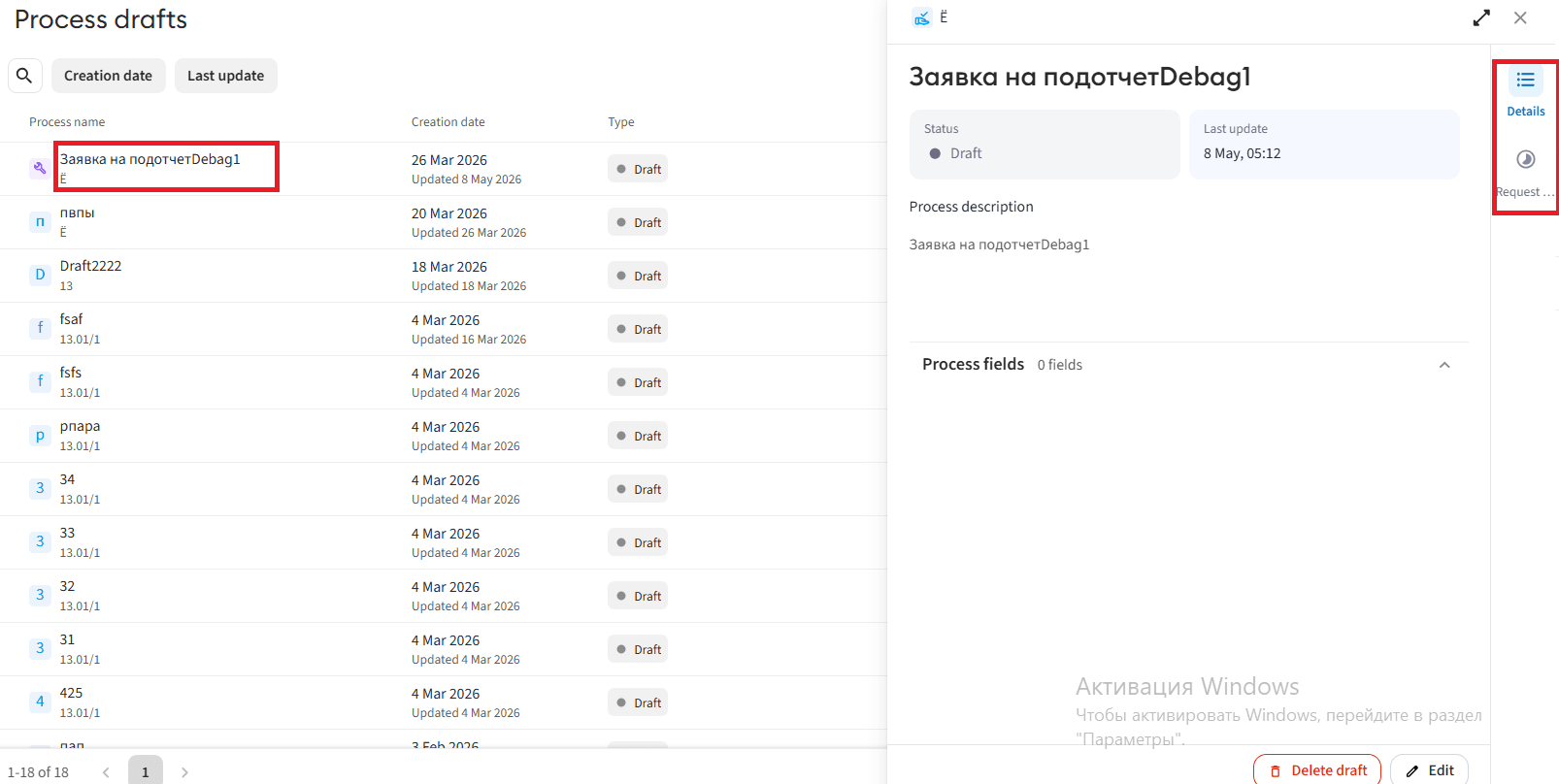
- Find the required draft in the list and click on it to open the details window.
- In the opened window, use the internal tabs to review the parameters:
- Under the "Details" tab, all filled basic details and fields created in the draft are displayed.
- Under the "Request route" tab, the current visual diagram (structure) of the process is displayed.
Step 3 — Select and perform the required action
Performed by: User with process management access
In the draft details, select one of the available options for working with the draft:
Editing and publishing a draft
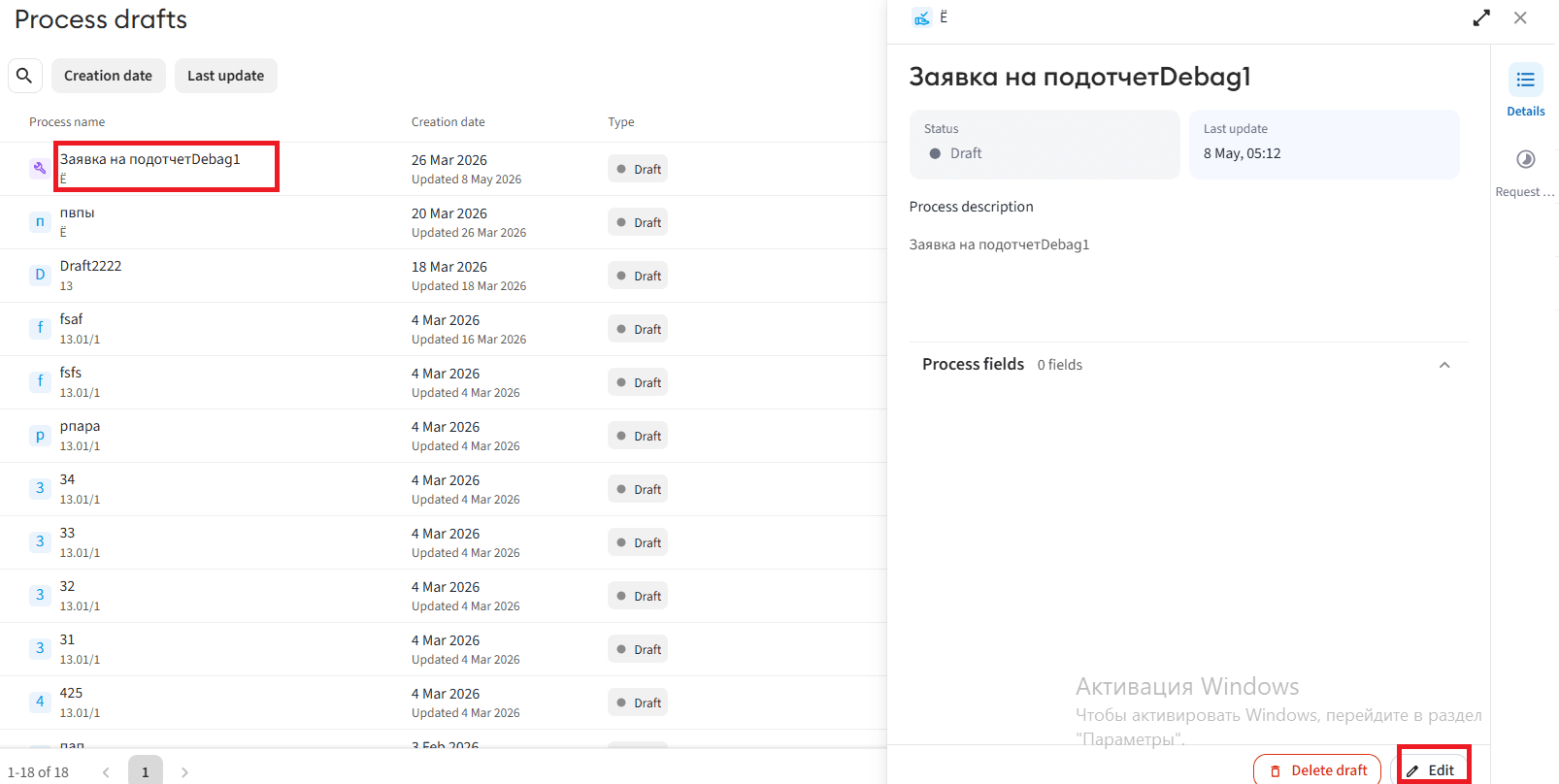
- In the draft details window, click the Edit button.
- In the opened process designer, make the necessary changes to steps, forms, or conditions.
- After completing the configuration, click the Publish button and confirm the action.
 Process published — the draft is successfully converted into a ready template, disappears from the current section, and appears in the general "Process List" with the "Published" status.
Deleting a draft via the details card
- In the draft details window, click the Delete draft button.
- Confirm the deletion in the modal window that appears.
Draft deleted — the template is completely erased and removed from the current list.
Deleting a draft via the process designer
- In the draft details window, click the Edit button.
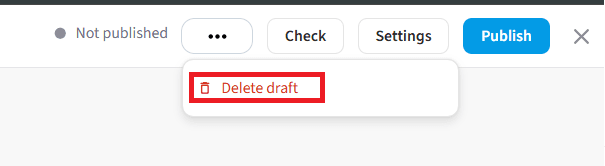
- While inside the process designer, click the "..." (three dots) button on the top control panel.
- In the drop-down list, select Delete draft.
- Confirm the deletion in the confirmation window.
 Draft deleted — the template is completely removed from the system and disappears from the drafts list.