Configuring Access Permissions for Processes and Requests
User permissions management allows flexible configuration of what actions each user can perform in the business process module (BPM) workspace.
Available for BPM module administrators.
Before you begin
Permission configuration is performed by the module administrator in the workspace control panel. Make sure you are ready:
| Who | What is needed |
|---|---|
| BPM Administrator | Administrator role + access to the company's workspace settings |
Steps Overview
- Step 1 — The BPM Administrator opens the user management menu
- Step 2 — The BPM Administrator finds the role or user in the list
- Step 3 — The BPM Administrator configures permissions and access rights
- Step 4 — The BPM Administrator saves the changes
Step 1 — Open the user management menu
Performed by: BPM Administrator
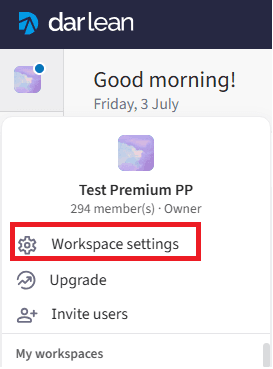
- Go to the company workspace settings
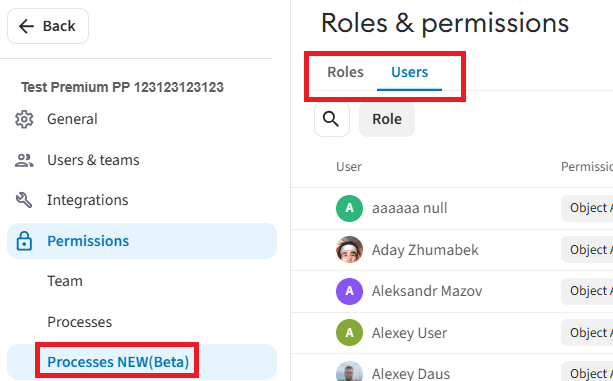
- Follow the path: Permissions → Processes NEW → Roles or Users
Step 2 — Find the role or user in the list
Performed by: BPM Administrator
- Find the role/user in the displayed list
- Click on the role/user to open the side configuration panel
Step 3 — Configure permissions
Performed by: BPM Administrator
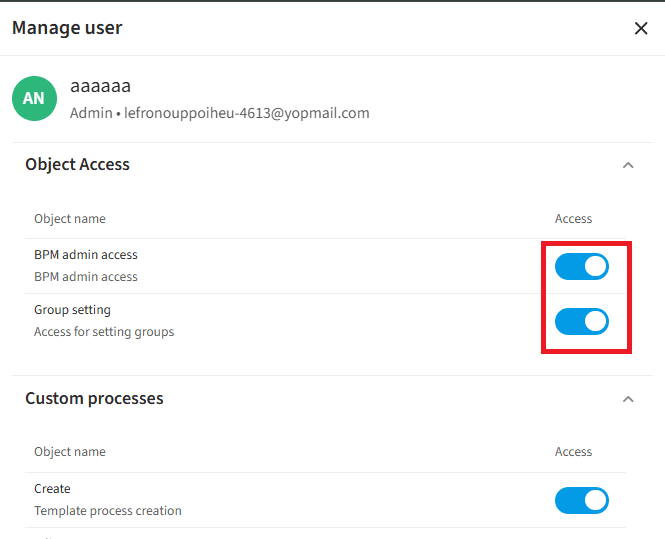
- In the "Manage Role/User" window, locate the required access parameters
- Use the toggles to set the permissions:
| Interface Toggle | What does this access grant the user? |
|---|---|
| BPM Admin Access | Grants full access to the administrative "Processes" tab. |
| Group setting | Allows creating, modifying, and configuring categories for processes. |
| Create | Grants permission to design new template processes from scratch. |
| Edit | Allows modifying, configuring, and refining process templates. |
| Start Processes | Grants the right to launch a specific selected process to create requests. |
Step 4 — Save changes
Performed by: BPM Administrator
- After configuring all the necessary toggles, click the blue Save button at the bottom of the screen
Settings saved — the changes and new access rights for the employee will take effect immediately.
Cancel actions — if you click the Cancel button or close the window via the cross icon, the modifications made to the permission settings will not be saved.