Process Management
In the "Process List" tab, after publishing a process, you can view its details, make changes, or completely delete it from the system.
Available for users with process management permissions.
Before you begin
All actions are performed through the process card in the control panel. Make sure you are in the correct section:
| Who | What is needed |
|---|---|
| User with process management access | Access to the "Process List" section + existence of created processes |
Steps Overview
- Step 1 — Open the card of the selected process from the list
- Step 2 — Select and perform the required action on the process
Step 1 — Open the card of the selected process
Performed by: User with process management access
- Go to the Processes tab.
- In the side menu, select Process List.
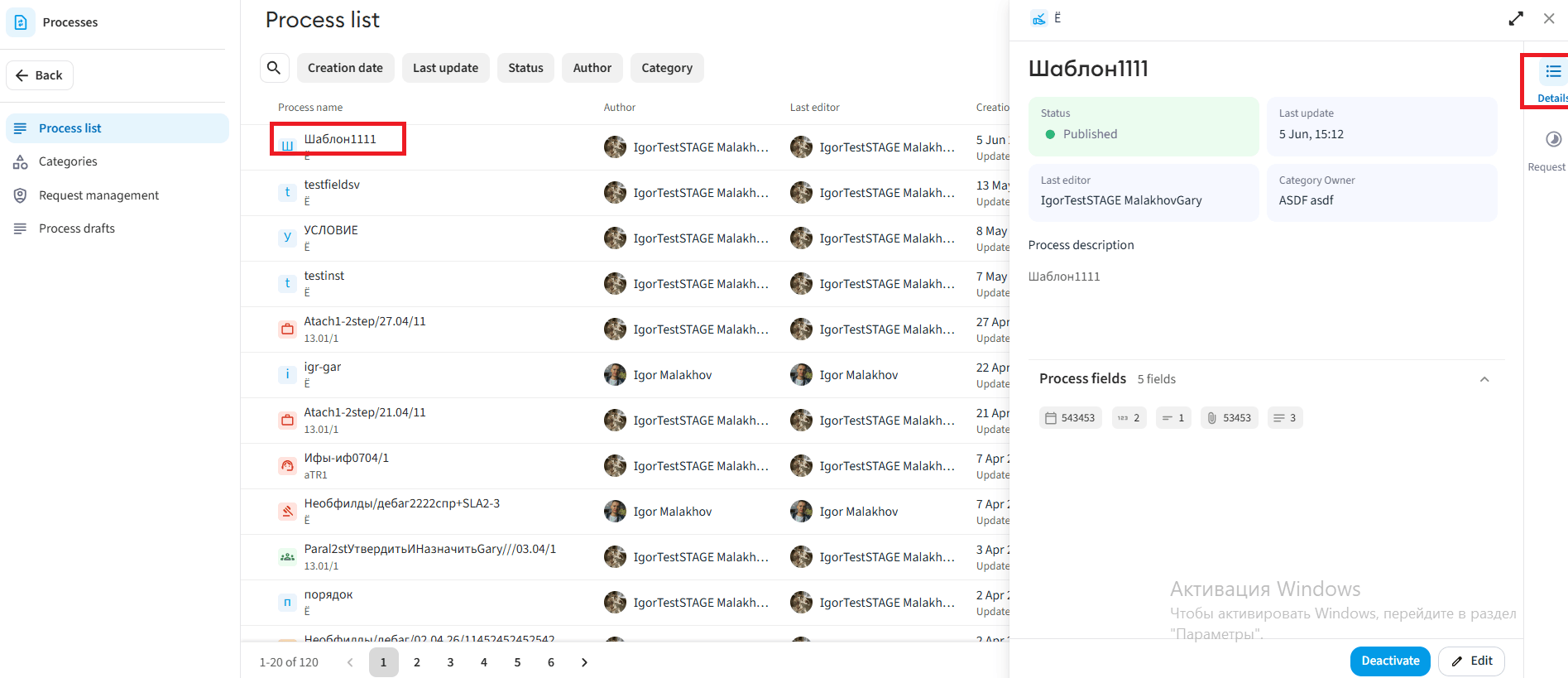
- Find the required process in the list and click on it to open the details window:
- Under the "Details" tab, the main details (name, category, description) and process fields are displayed.
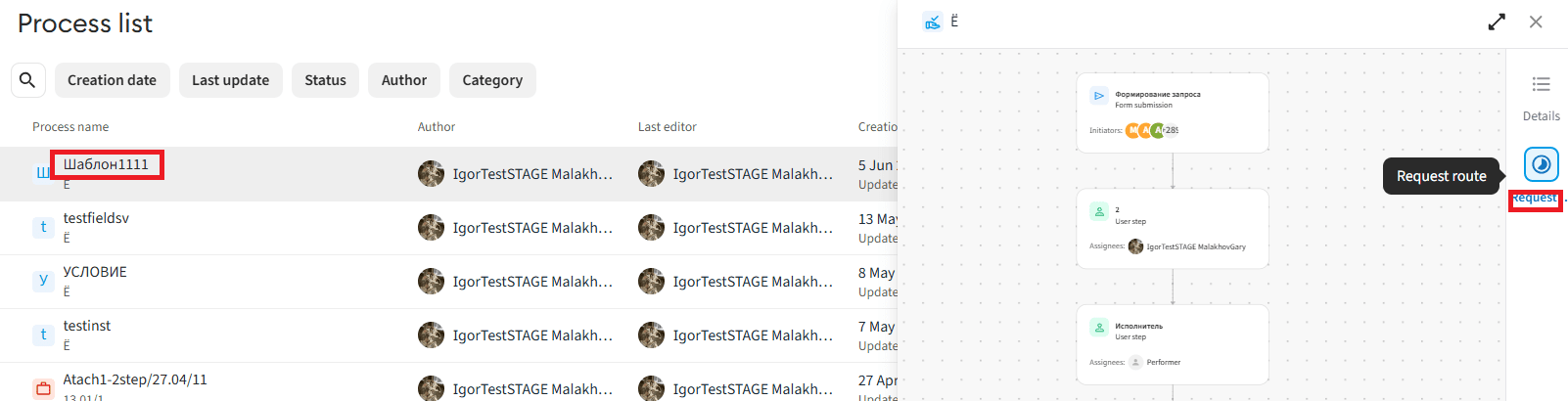
- Under the "Request route" tab, the process route is displayed.
Step 2 — Select and perform the required action
Performed by: User with process management access
In the opened window, select an action:
Deactivating a process
This action is only available for processes with the "Published" status.
- In the process details, click the Deactivate button.
- Confirm the deactivation in the window that appears.
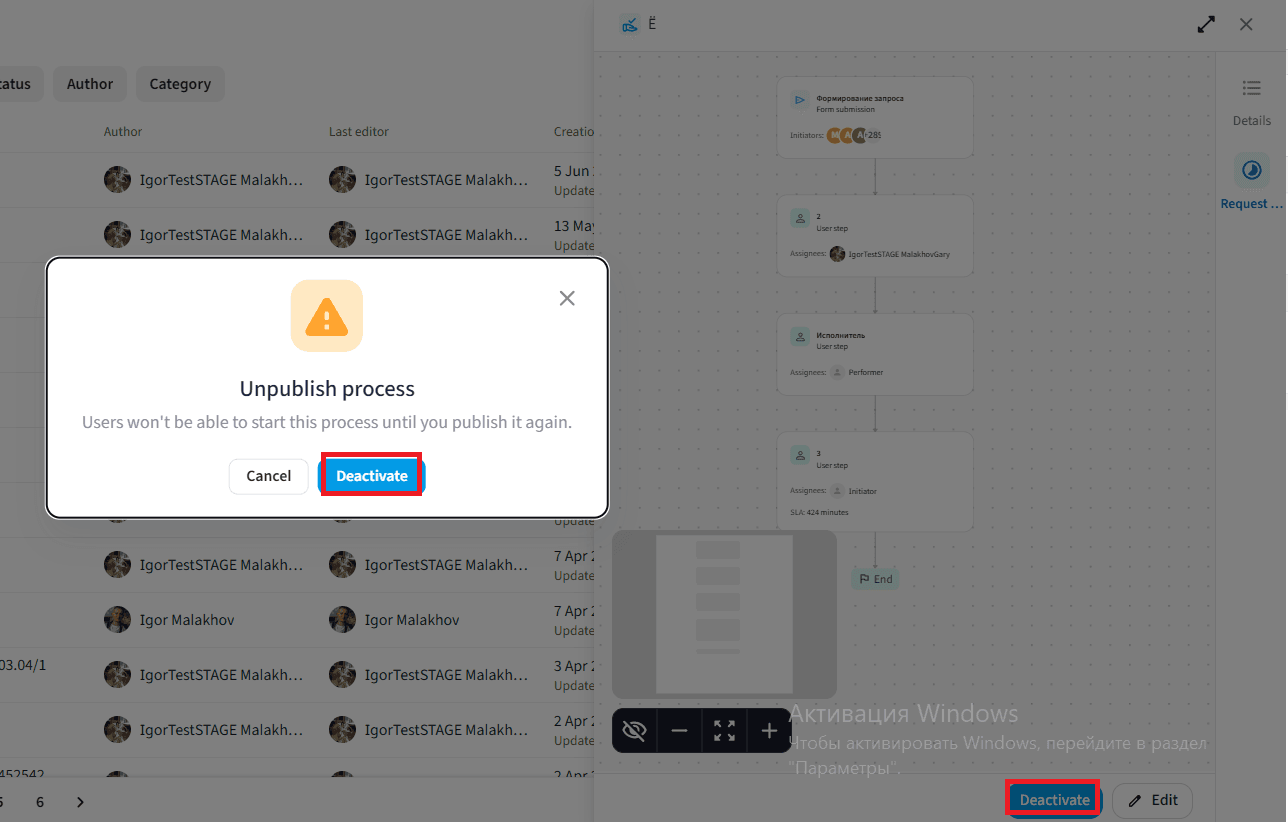 Process deactivated — it changes to "Unpublished" status and is hidden from users (they will no longer be able to create new requests using it).
Editing a process
- In the process details, click the Edit button.
- In the opened process designer, edit any steps, forms, or conditions.
- After completing the changes, click the Publish button and confirm the action.
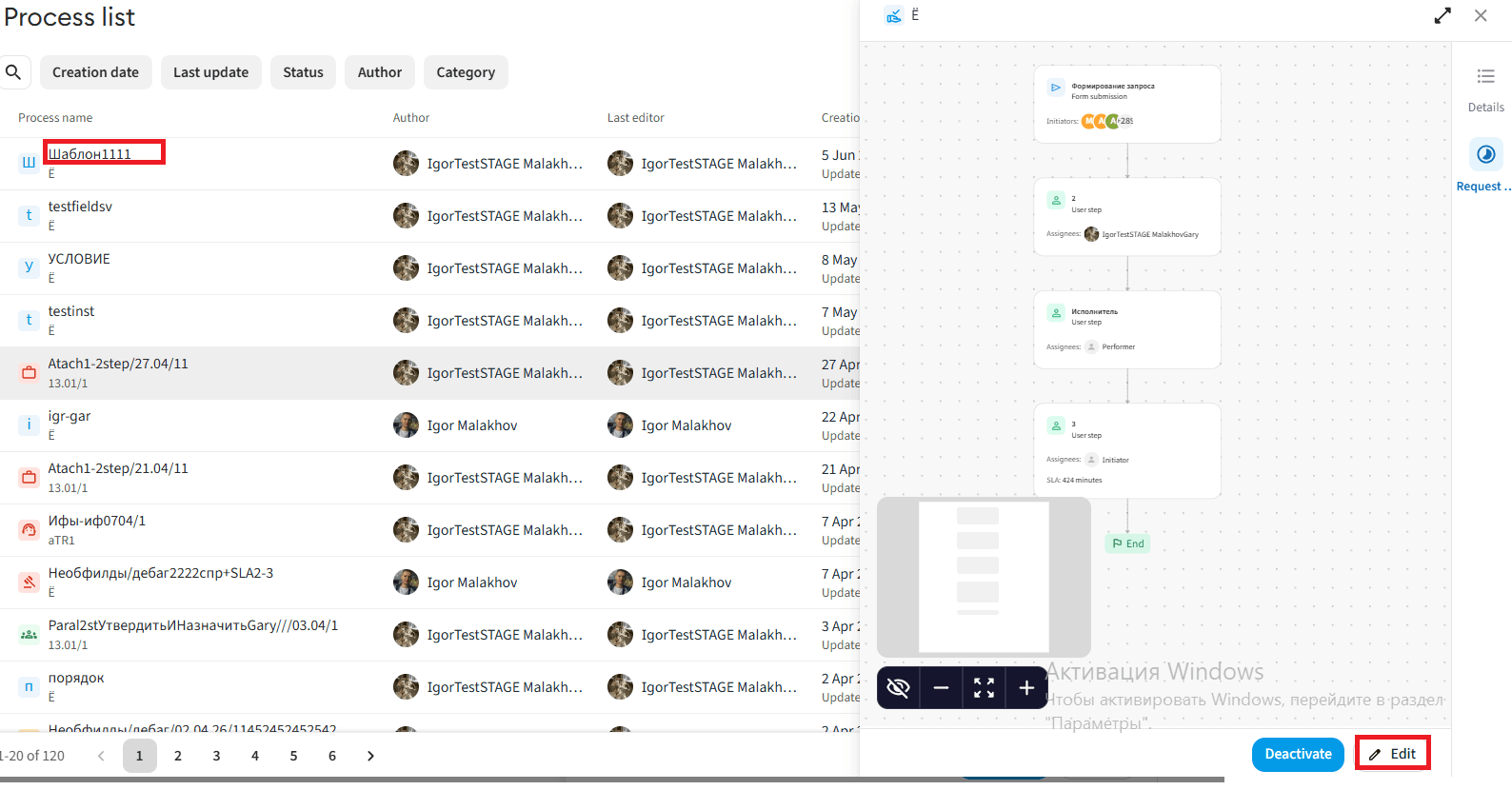 Changes applied — the updated process will appear in the general process list with the "Published" status.
Deleting a process
This action is only available for processes with the "Unpublished" status. If the process is currently active, deactivate it first.
- In the process details, click the "..." (three dots) button in the top menu.
- In the drop-down list, select Delete process.
- Confirm the deletion in the modal window.
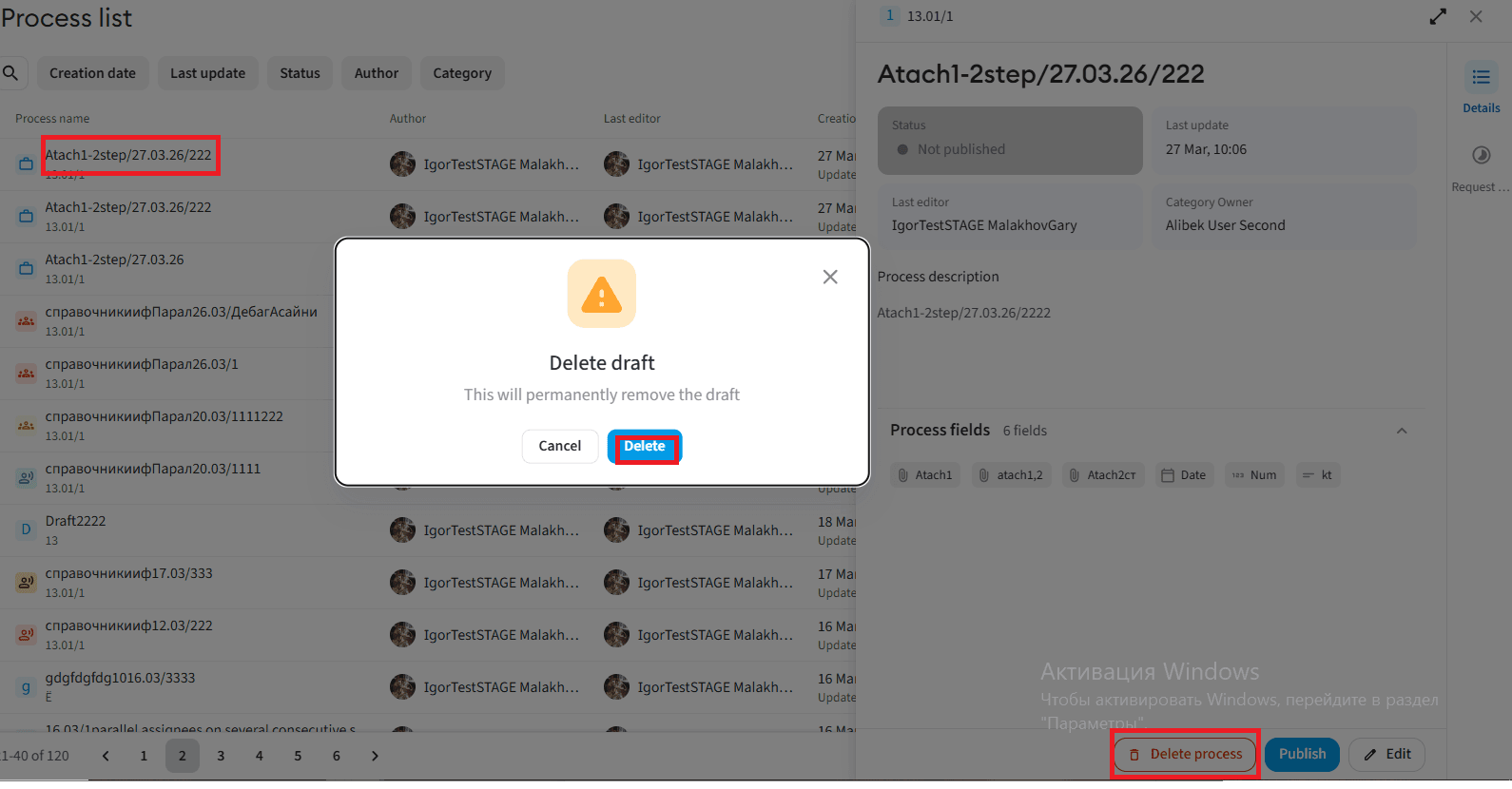 Process deleted — the template is completely and permanently removed from the general process list.