Tasks Module — Overview and Views
What is the Tasks module?
In the Tasks section, you can view and manage all your tasks. There are three convenient views: List, Boards, and Dashboards.
List
The ideal view when you need to see all tasks in one place as a table.

What you can do here:
- Get a quick overview. At the top of the screen — task statistics showing:
- how many tasks are assigned to you
- how many you created
- tasks from projects and meeting minutes
- personal tasks not linked to anything
- how many tasks are overdue
- Search for tasks. Use filters by date, status, or assignee. For complex conditions, click "All filters".
- Customize the table. Click "Columns" to choose which data to display: assignee, priority, progress, and other parameters.
- Create new tasks. Click the "+ Task" button.
Boards
Ideal for visual task management using Kanban boards.
How it works:
When you open this section, you will see a list of all available boards, grouped by type:
- Personal tasks: "My tasks" and "Tasks from meeting minutes"
- Project tasks: one board per project
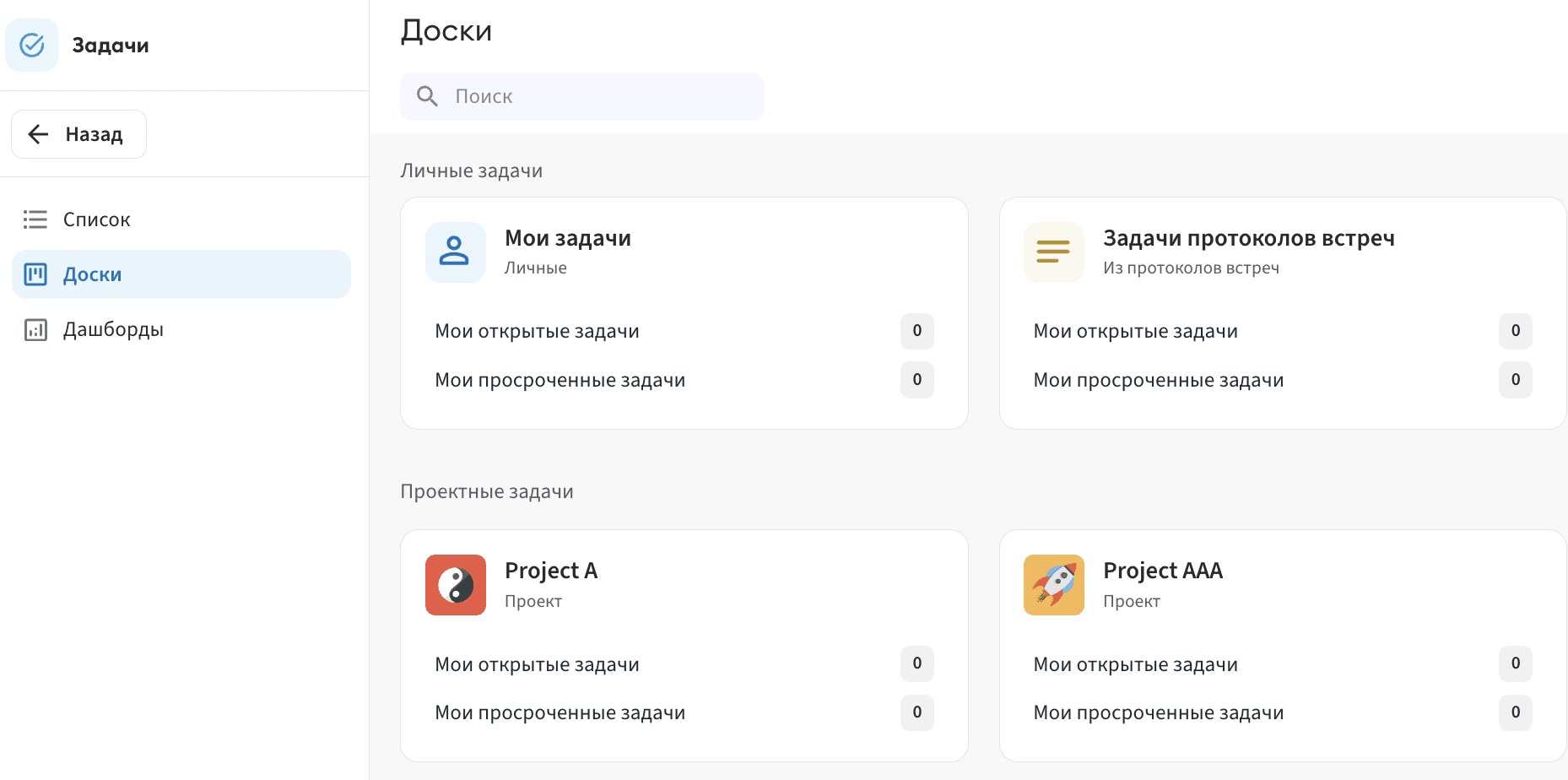
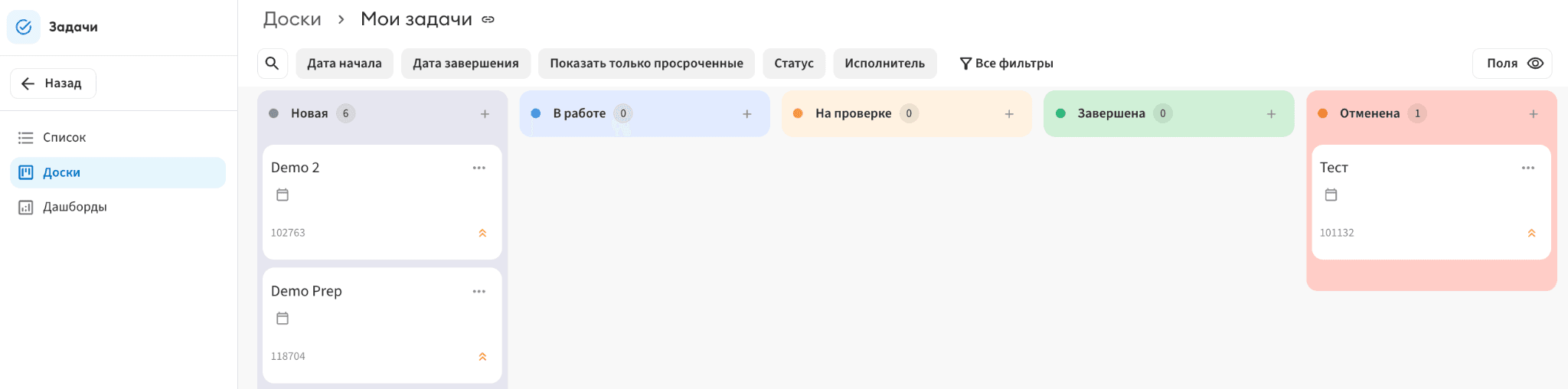
Select a board — tasks inside are divided into columns by status (e.g., To Do, In Progress, Done). Drag tasks between columns to change their status.
- Customize the view. The "Fields" button lets you show the information you need on task cards: assignee, priority, start date, and other parameters.
- Create tasks directly on the board. Click "+" in any column to add a task with the required status right away.
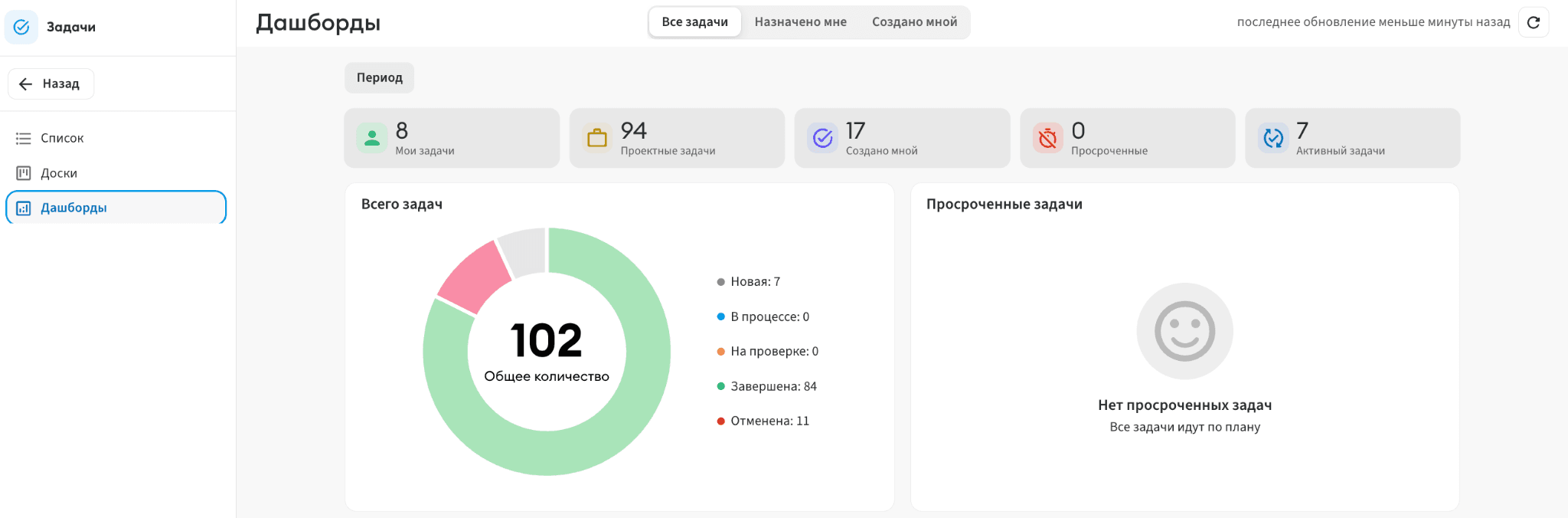
Dashboards (Analytics Panel)
A view for those who want to see the big picture and analyze task data.
What's available here:
- Visual widgets — charts and diagrams showing task breakdown by status, assignee, and project; list of overdue tasks.
- Period filtering — select a time range to view statistics for a week, month, or any other period.
- Data grouping — switch between "All tasks", tasks assigned to you, and tasks created by you.