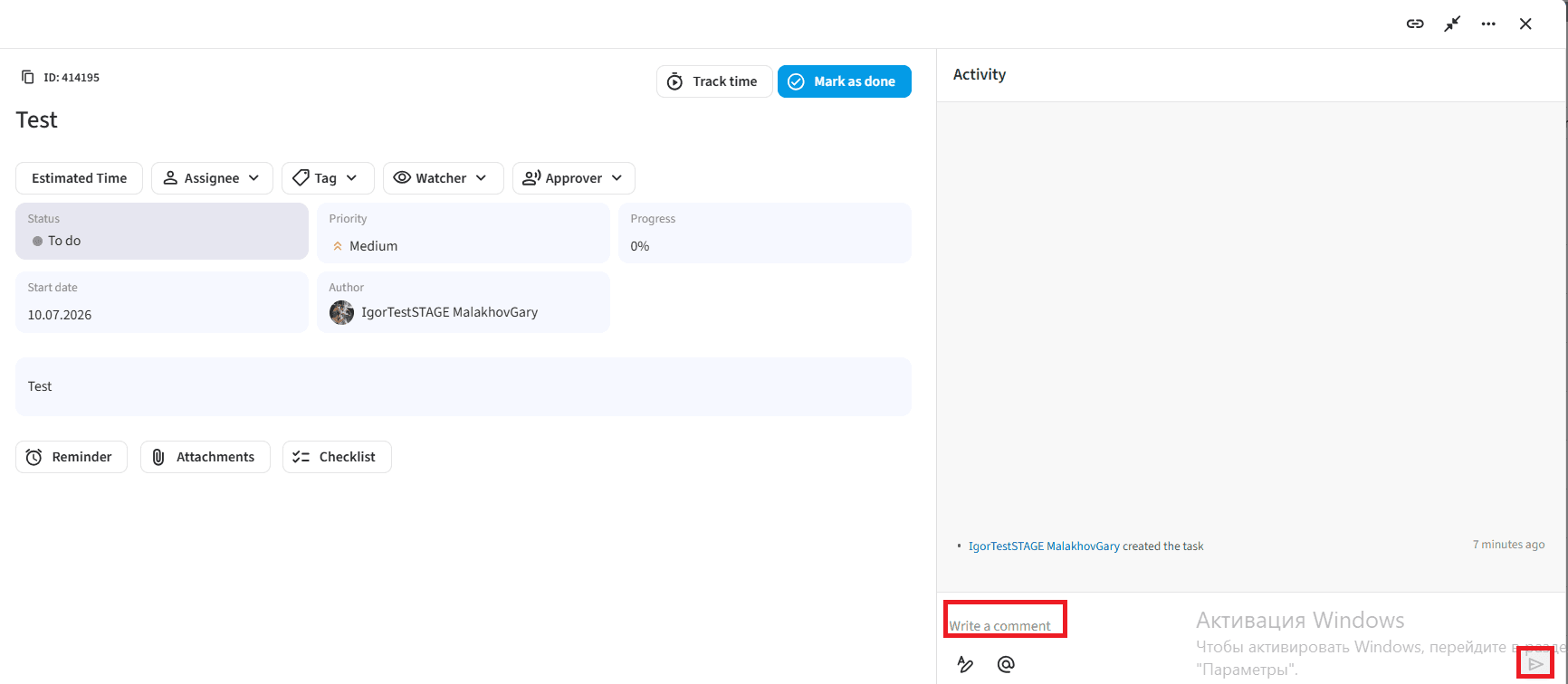
Additional Actions and Task Management
After creating a task in the "Tasks" module of the Darlean platform, you gain access to advanced functionality for collaboration, progress tracking, and history logging.
1. Additional Actions with a Task
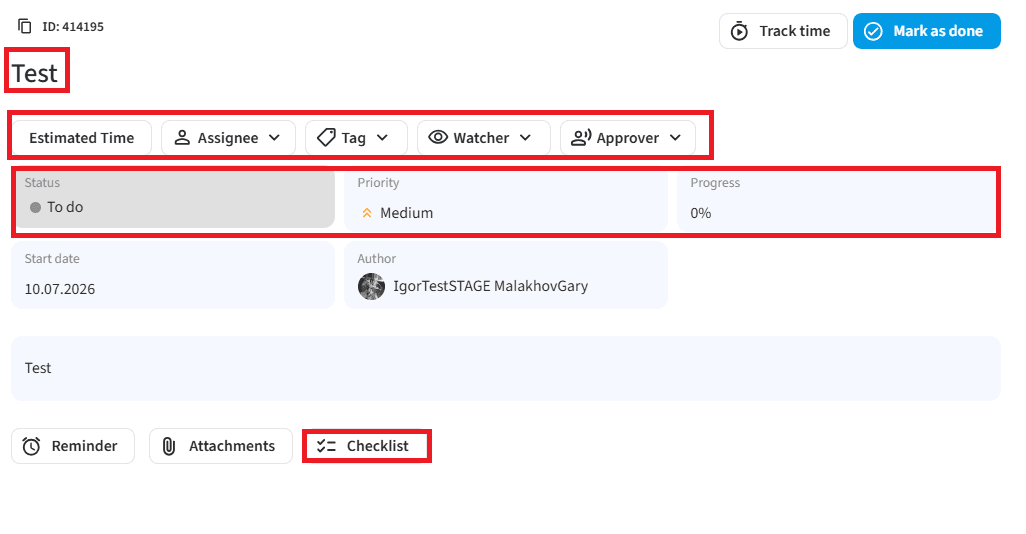
Inside the created task card, you can perform the following actions to keep data up to date:
- Edit the title and configure the start and end dates.
- Add tags for classification.
- Copy the task link to share it with other participants.
- Change the status (e.g., from "New" to "Completed") and priority.
- Update completion progress.
- Assign assignees or observers.
- Add checklists, comments, attachments, and log time.
- Use the right panel to work with change history, reminders, and notifications.
2. Time Tracking
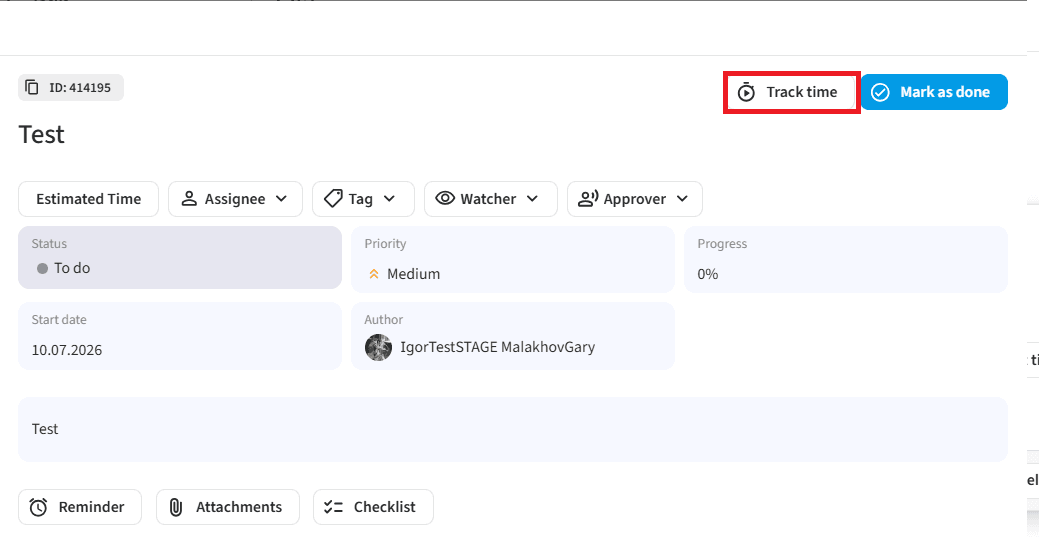
Each task is equipped with a built-in "Track time" to monitor actual hours spent:
- Click the "Track time" button.
- Click the Manual entry" button.
- Specify the amount of time spent and select the date.
- If necessary, add a comment to the current work period.
- Click "Save".
Note: All entered records can be edited or deleted as needed.
3. Setting Up Reminders
To ensure task participants do not miss important events or deadlines, configure the reminder system:
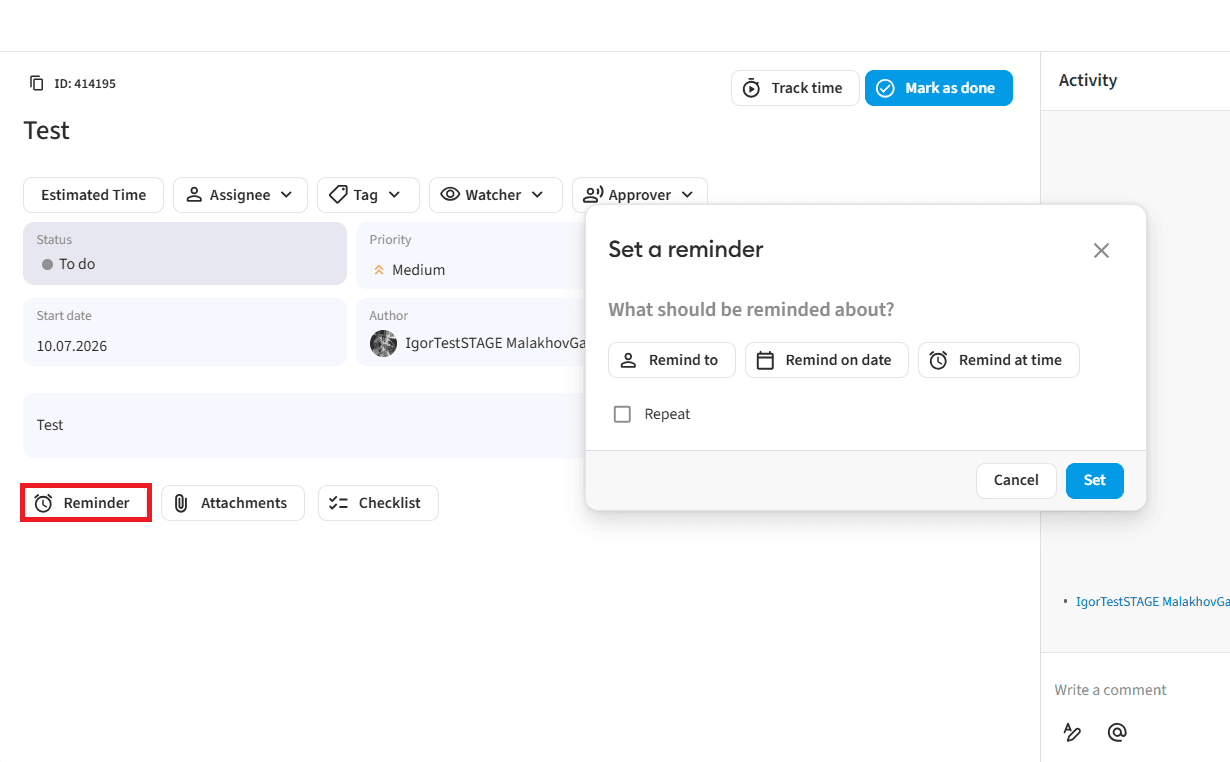
- Click the "Reminder" button.
- In the opened "Set a Reminder" modal window, configure the following parameters:
- Specify a comment ("What shoud be reminded about").
- Select the recipient ("Remind to").
- Specify the date ("Remind on date").
- Specify the time ("Remind at time").
- Select the recurrence option ("Repeat").
- Click the "Set" button.
4. Viewing Task History
To track changes and ensure workflow transparency, use the task history:
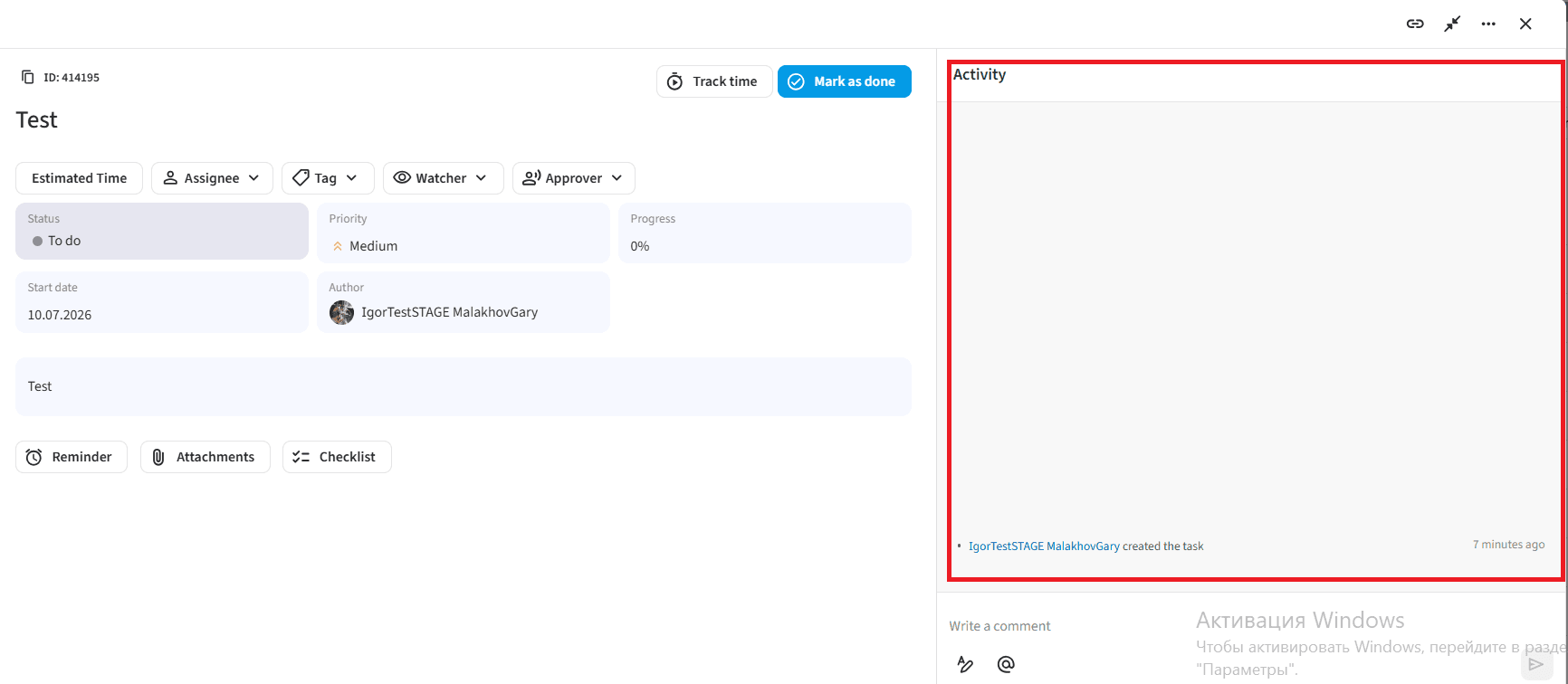
- Go to the "Activity" section on the right panel of the task card.
- Review the list of all performed actions. The following events are recorded here:
- The date and the author of the task creation.
- Changes in statuses and priorities.
- Updates to the description, start/end dates, and time tracking entries.
5. Adding Attachments
You can attach supporting files and documents to the task:
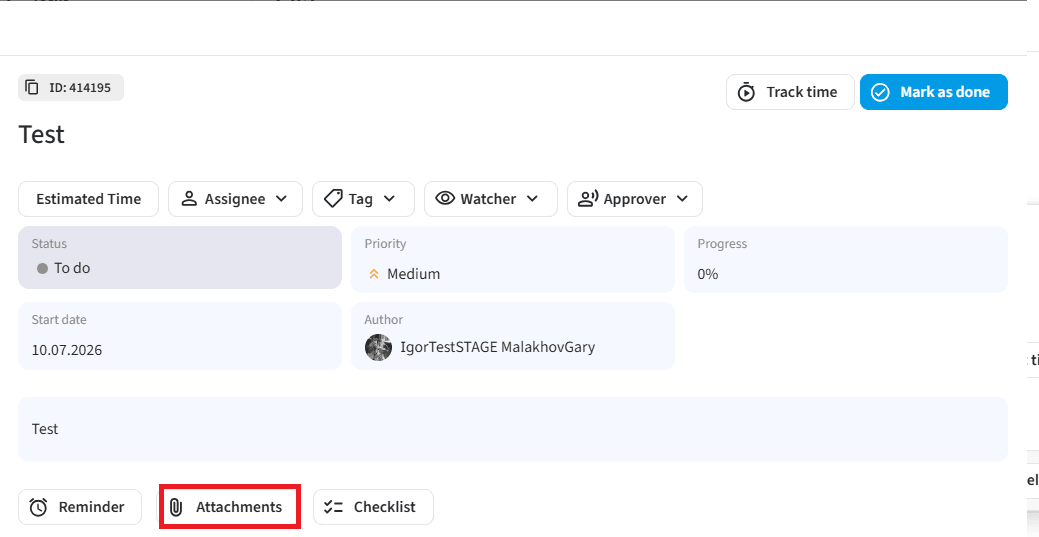
- Click the "Attachments" button.
- Add a document from your device
Platform Limitations: Allowed file formats are PDF, PNG, JPEG, DOCX. The maximum size for a single file is up to 25 MB.
6. Adding Comments
Use the comment block to exchange messages:
- Locate the "Activity" section on the right side of the screen.
- Click on the text field with the placeholder prompt "Write a comment..." and type your text.
- Click the "Send" button (paper airplane/arrow icon).
Comments allow you to quickly discuss operational nuances with the team and keep all important contextual information directly inside the task card.