Managing Request Drafts
If you have started filling out a request but are not ready to send it along the approval route, you can always postpone the work. The system allows you to save the entered data and return to it later.
Actions with request drafts are available to the author (initiator) of this request.
Steps Overview
- Step 1 — Save an incomplete request to drafts
- Step 2 — Go to the drafts section and edit the form
- Step 3 — Delete an unneeded draft from the system
Step 1 — Save an incomplete request to drafts
If in the process of filling out fields you need to interrupt your work:
- In the open request window, click the Close button.
- In the pop-up window that appears, click the Save button.
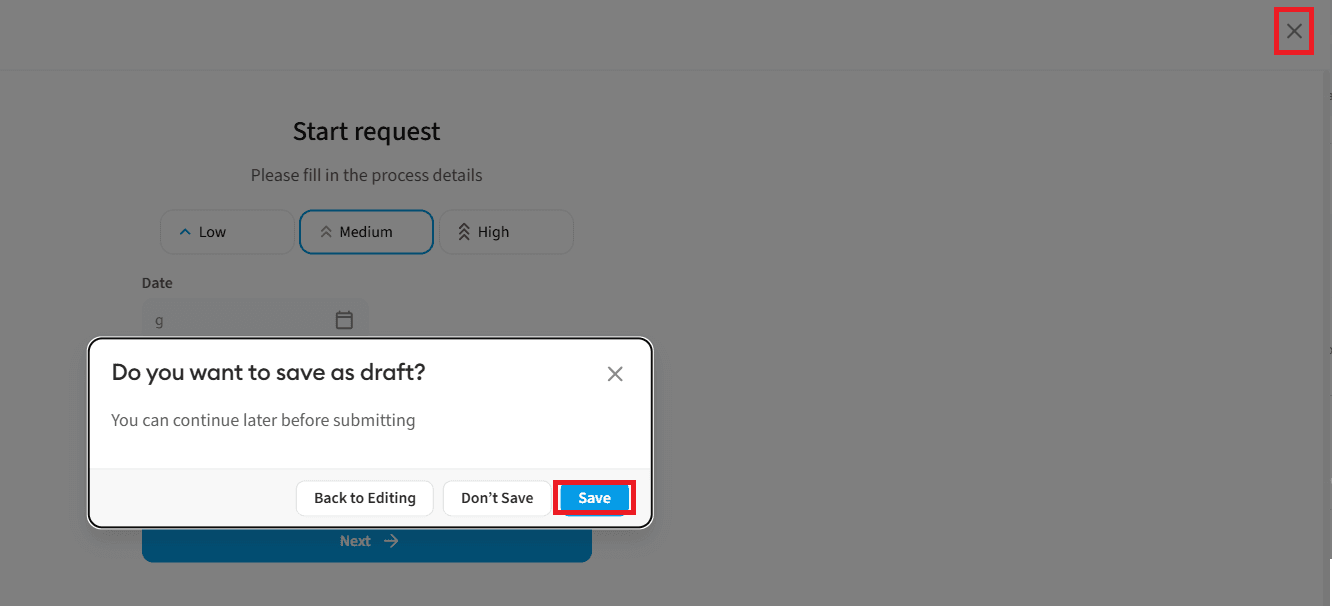 Result: The draft is successfully saved without being sent for approval.
Step 2 — Editing a draft
To continue filling out a previously saved form:
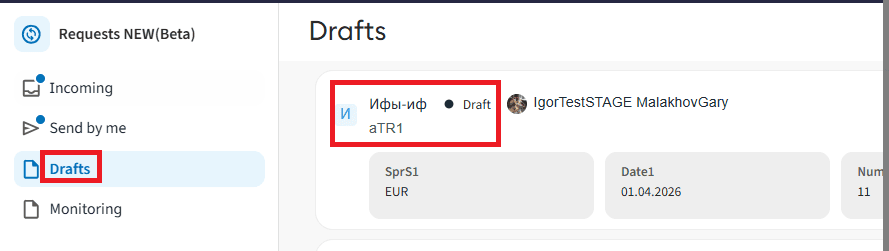
- Go to the Drafts tab (in the general "Requests" section).
- Click on the selected draft in the list to open its card.
- Edit the draft — change the priority, add text, or update fields.
- If you decide to postpone sending again, click the Close button in the top menu.
- In the confirmation pop-up window, click Save again.
Step 3 — Deleting a draft
- Open the Drafts tab.
- Click on the required entry and open the draft.
- Inside the card, click the Delete button.
- In the confirmation pop-up window, click the Delete button.
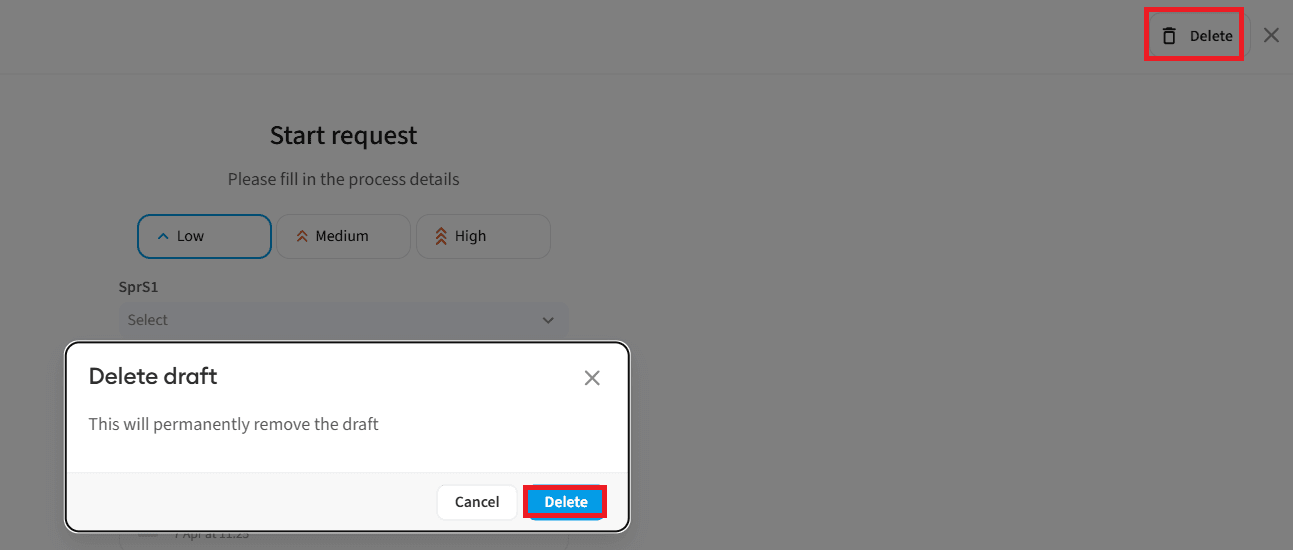 Result: The draft is completely removed from the list.