Request View and Management
After launching a request, users and assignees can track its status, exchange comments, and perform actions for approval, revision, or process cancellation.
The availability of actions depends on your role in the request (initiator, current assignee, or observer).
Before you begin
All operations are performed inside the interactive request card. To start working, open the Requests section, find the required record in any of the lists ("Incoming", "Sent by me", "Observed"), and click on it.
1. Viewing Request Details and History
Inside the request card, all information is distributed across three thematic tabs:
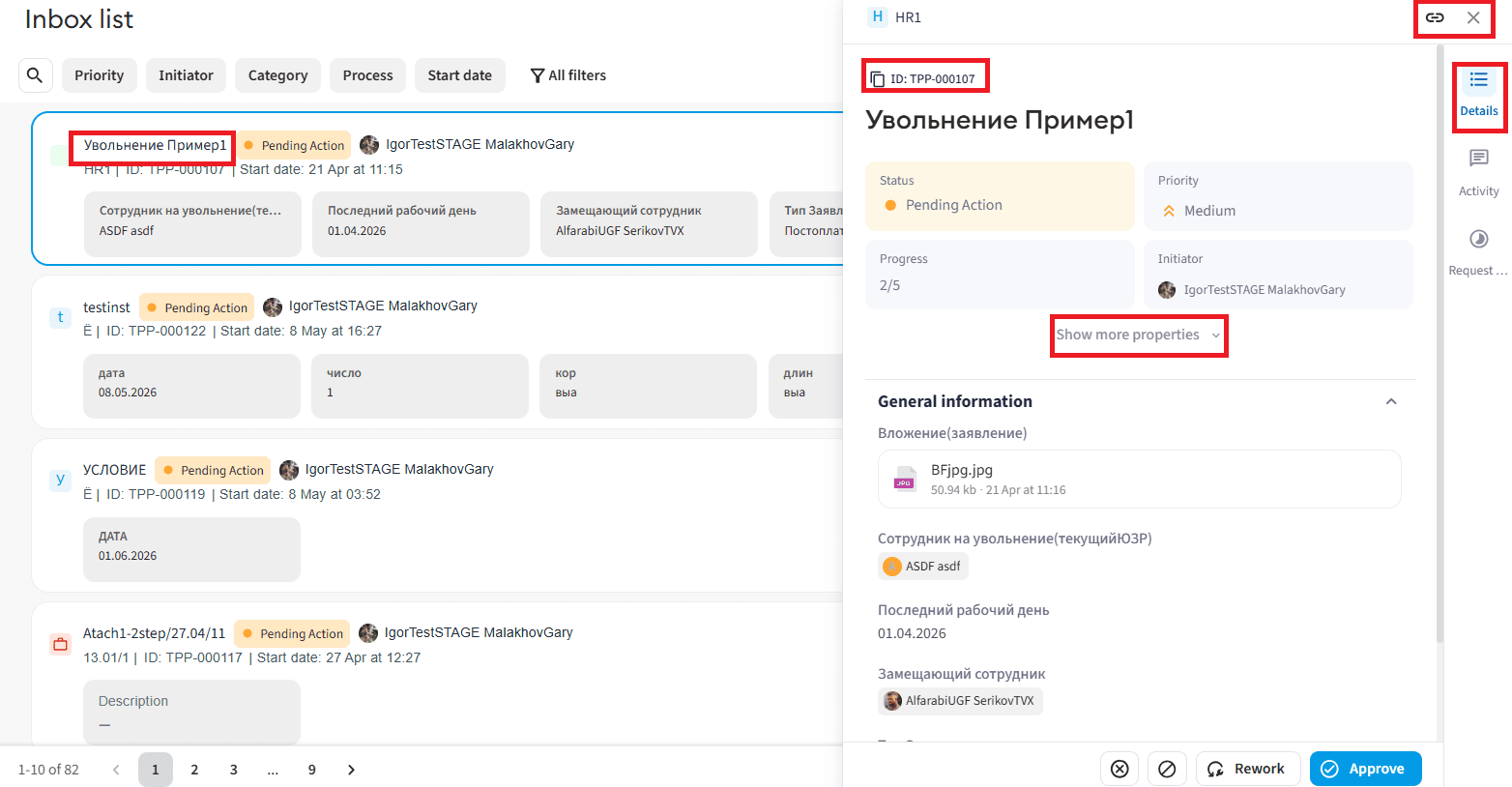
"Details" Tab
Here, all key information regarding the current state of the request is displayed:
- Content: list of observers, all filled form fields, current status, priority, type of process, initiator's name, and SLA deadline.
- Available service actions:
- "Copy" — copying the direct link to this request to the clipboard.
- "ID" — quick copying of the unique request identifier (ID).
- "Close" — closing the card and returning to the previous request list.
"Activity" Tab
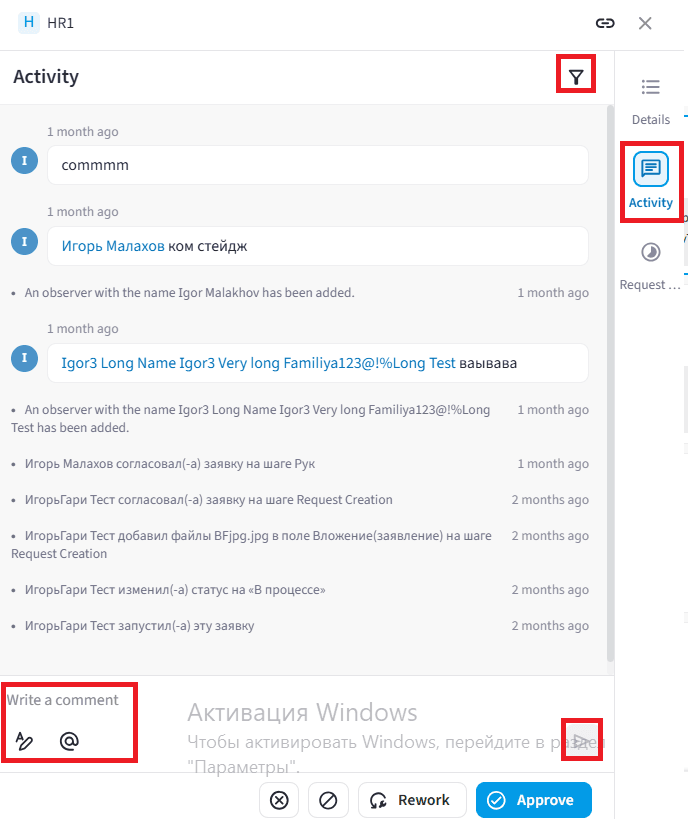
Designed for tracking the work chronology and internal communication:
- Content: full history of actions performed on the request (status changes, adding or modifying field data) and user comments.
- Available actions:
- "Quick Filters" — allows instantly filtering the feed to leave only employee comments or only system activity.
- Adding a comment — enter text in the "Comment" field and click Send.
- User tagging (mentions) — to draw a specific colleague's attention, click the "@" button in the input field (or type this symbol from the keyboard), select the user from the list, and click Send. They will receive a notification.
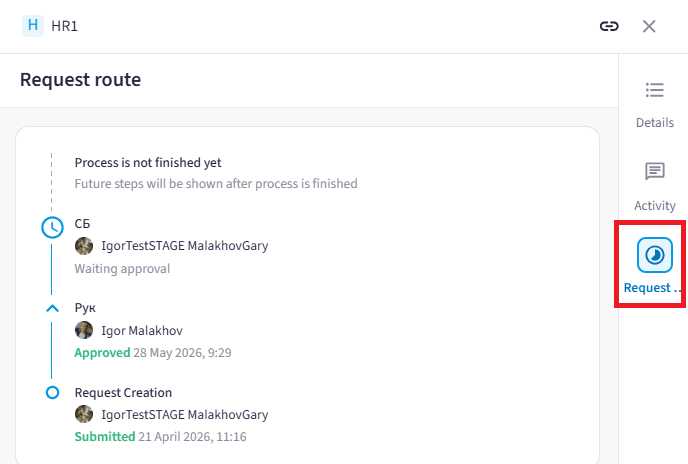
"Request Route" Tab
- Content: a visual diagram of the process where the entire completed path is highlighted in color and the current step where the request is located is clearly designated.
2. Request Approval (Assignee Actions)
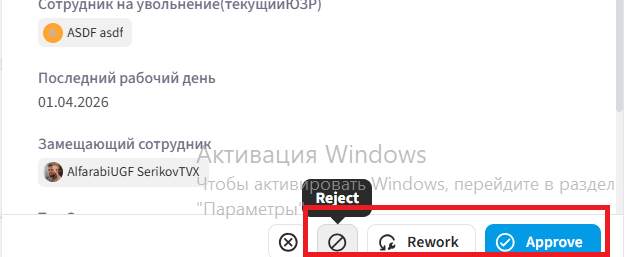
If you are designated as an assignee at the current stage of the process, a decision-making panel becomes available to you with the following buttons:
-
"Claim" — if the task is sent to a general group of employees, click this button. The request will be assigned to you personally, becoming unavailable for editing by other group members.
-
"Approve" — confirmation of successful stage completion.
Please note: if there are required fields at your step, first enter data into them under the "Details" tab, and only then click "Approve". The request will proceed to the next stage of the route.
-
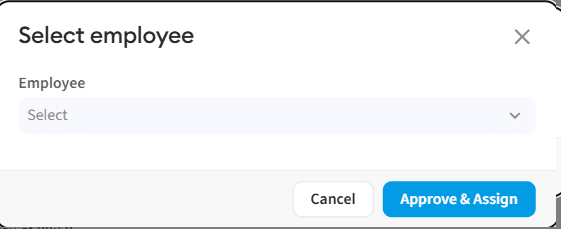
"Approve and Assign" — used if you need to manually determine the next approver. This is available at steps where the flag for assigning an approver is set. Select an employee from the directory and confirm the action.
- “Cancel/Close” button — closes the window; the request remains at the current stage.
- “Approve and Assign” button — routes the document to the selected person.
-
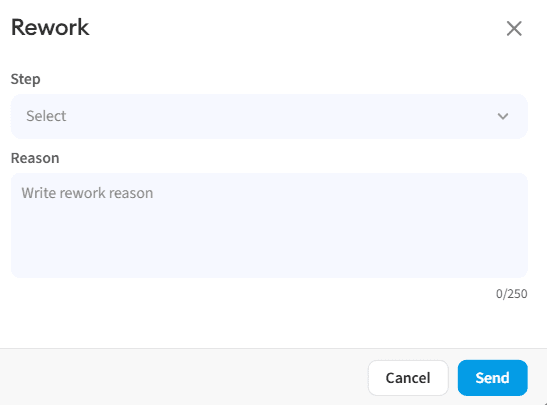
"Rework" — returning the request to previous stages to correct errors. When clicked, select the specific step to which the process should be returned and specify the mandatory reason for revision.
- “Cancel/Close” button — cancels the return; the request remains with you.
- “Send” button — sends the request back to the selected step.
-
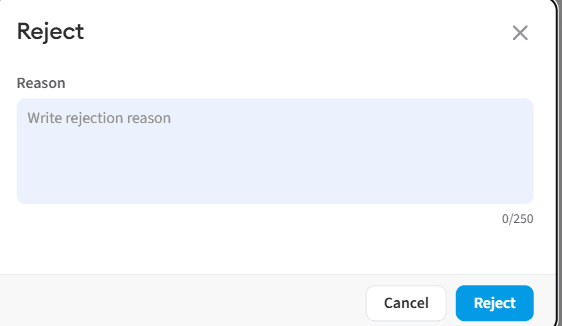
"Reject" — a complete and final halt of the process if it cannot be approved. When clicked, you must enter a text reason for rejection.
- “Cancel/Close” button — returns to the card without changes.
- “Reject” button — permanently rejects the request without the possibility of resubmitting it.
3. Request Cancellation and Deletion (Initiator Actions)
If you are the author (initiator) of the launched process, you have the right to withdraw it or completely erase it from the system:
Request Cancellation
Available for requests currently in the approval process.
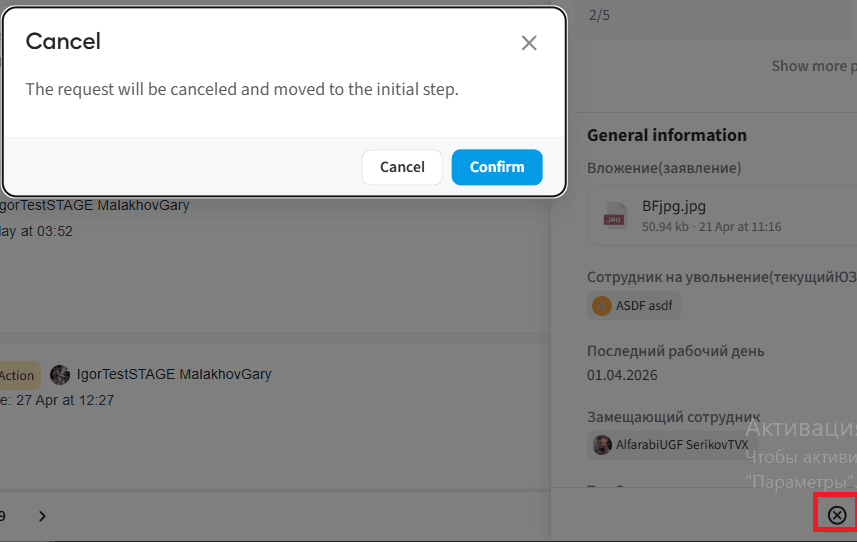
- In the request details, click the Cancel button.
- In the opened window, confirm your decision:
- "Cancel/Close" — interrupts the action; the request will continue moving along the route.
- "Confirm" — the request is forcibly stopped and changes to "Canceled" status.
Request Deletion
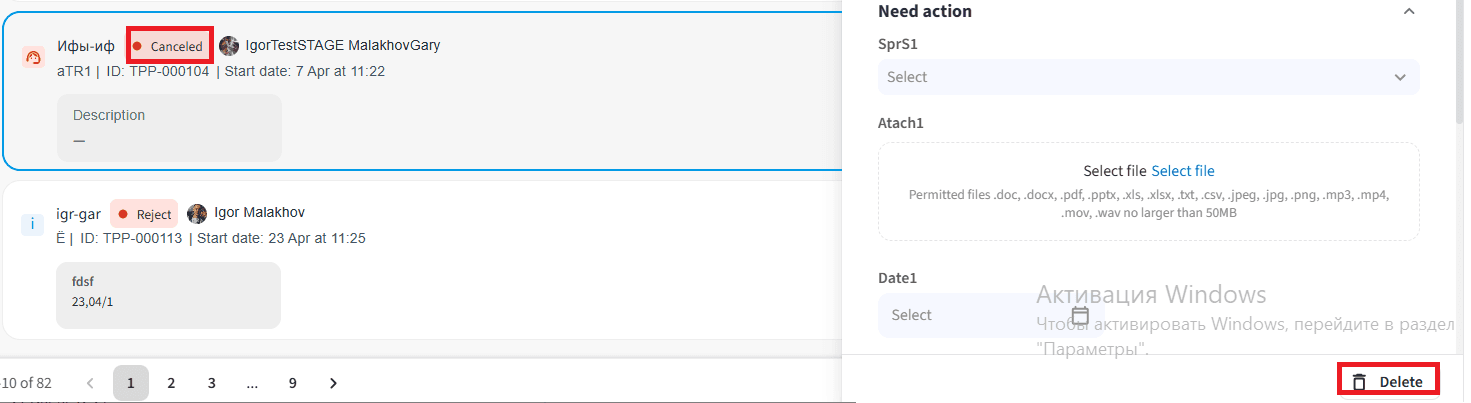
Available strictly for requests that have already been previously changed to "Canceled" status.
- In the details of the canceled request, click the Delete button.
- In the "Delete Request" warning window, choose:
- "Cancel/Close" — the request is not deleted and remains in the list of canceled requests.
- "Delete" — the request is removed from the general system list.