User Guide: Goals and Documents Management
1. Project KPI Management
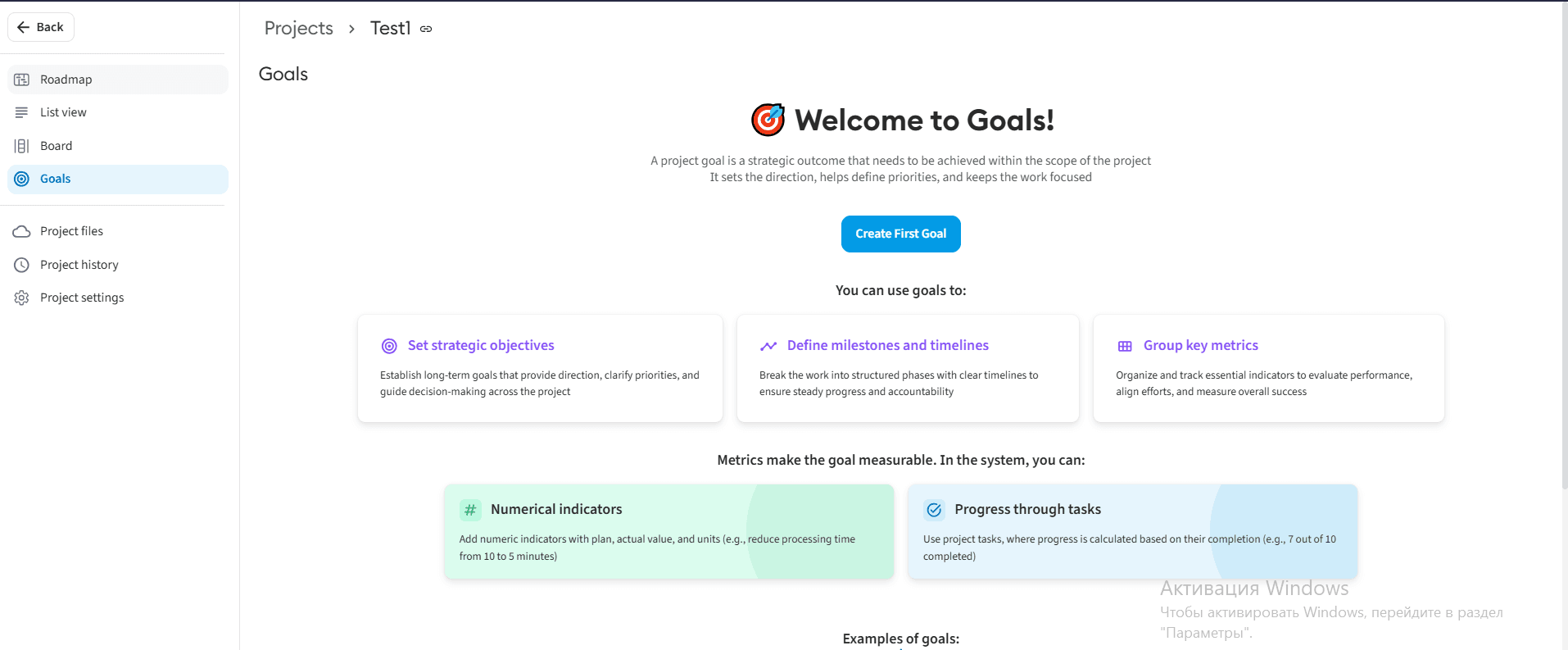
The "Goals" section allows you to visually track the progress of tasks and numerical indicators within a project. The system automatically calculates goal achievement percentages and sends deadline notifications.
1.1. Creating a Goal
- Go to the "Projects" module and open the "Goals" tab.
- Create a new goal by filling in the required fields:
- Goal Title
- Description
- Schedule (Dates)
- Assignee (Executor)
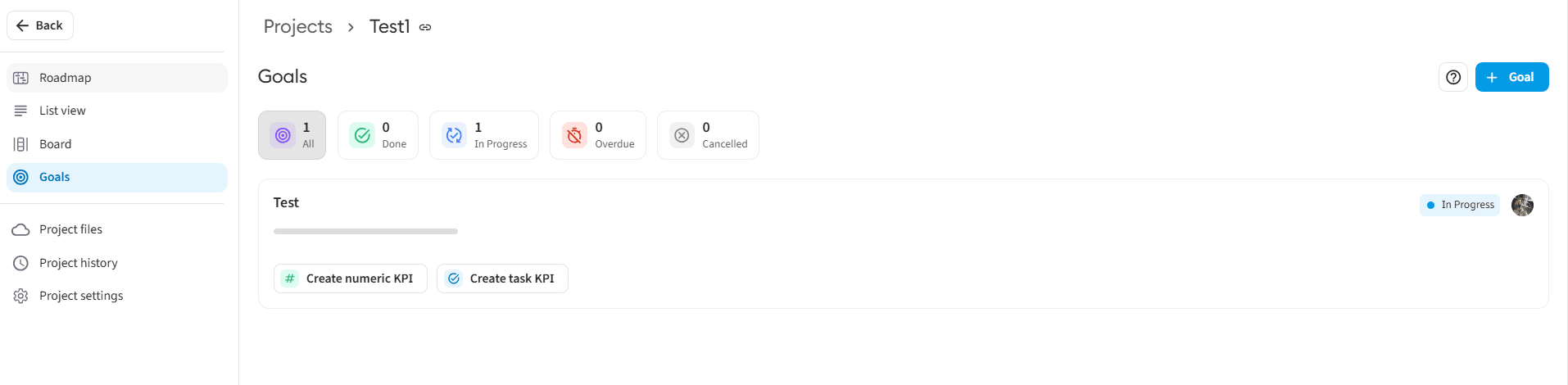
- After saving, a goal card with a progress bar will be displayed in the system.
1.2. Adding KPIs and Their Types
Each created goal can contain one or more KPIs of two types:
- Task-based: KPI progress directly depends on status changes of the linked tasks. If multiple tasks are added to a KPI, the system calculates the progress as their arithmetic mean.
- Numerical: Used for fixed metrics. During configuration, a target Plan must be specified (the value must be strictly greater than 0), and the current Actual value is updated during execution.
1.3. Overall Progress Calculation and Notifications
- Overall Goal Progress: If a goal includes multiple KPIs, the final progress of the entire goal is calculated as the average value of all its KPIs and displayed as a percentage on the card.
- Notification System:
- An automatic notification is sent to project participants 1 day before the deadline.
- If the goal deadline is missed, the system sends an overdue notification.
2. Working with Project Files ("Project File" Tab)
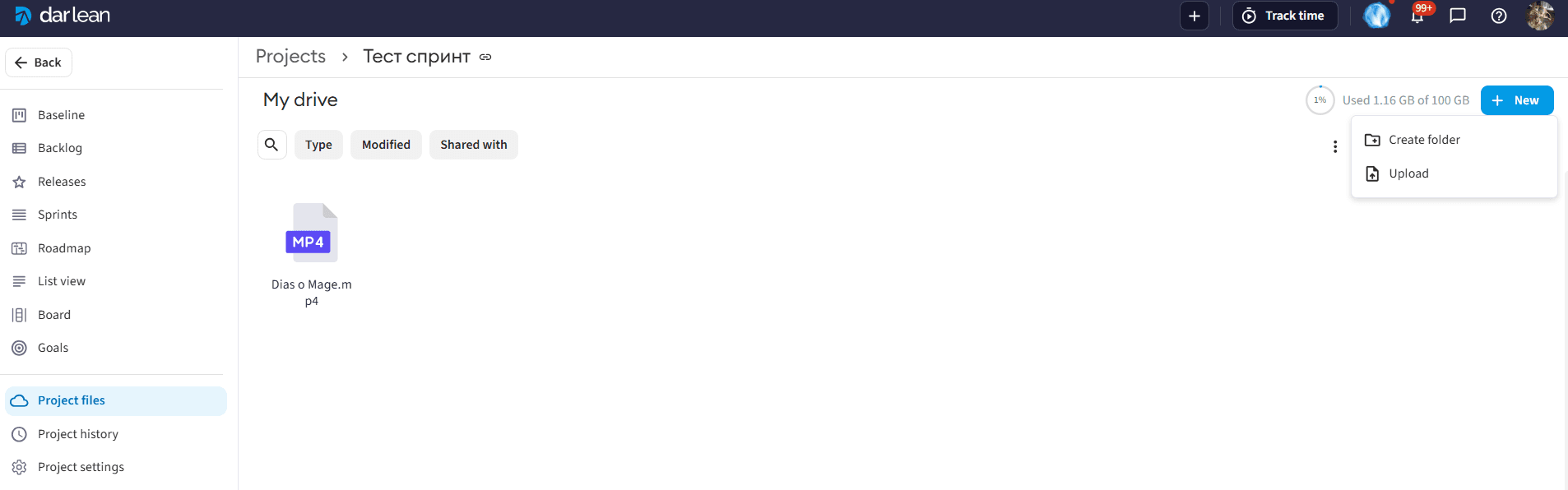
Each project in the system is equipped with a centralized document repository, where files can be displayed as a single list or grouped into folders.
2.1. Uploading Documents to a Project
- Navigate to the required project and open the "Documents" tab.
- Upload files to the system using one of two convenient methods:
- Click the "Upload file" button and select the document on your device.
- Drag and drop the required files directly into the interface upload area using Drag&Drop.
2.2. Requirements for Uploaded Files
When uploading documents, please consider the technical limitations set by the system:
- Supported Formats:
JPEG,JPG,PNG,DOCX,PDF,XLS,XLSX,CSV. - Maximum Size: No more than 50 MB per file.