Task Management
1. Task and Task Type Management
The task management section allows you to create, view, and edit tasks within a specific project. Selecting a task type during its creation (e.g., Task, Bug, User Story) helps structure the team's work and effectively track various types of activities.
Subtasks
- Decomposition: Subtasks are used to break down large tasks into smaller, more manageable elements.
- Nesting Levels: You can create up to 5 levels of subtasks within a single parent task.
Task Type Configuration
Administrators can adapt the system to unique business processes by configuring task categories. Up to 10 task types can be available simultaneously within a single project:
- Standard Types (cannot be deleted or edited):
- Task
- Bug
- Story
- Custom Types (up to 7 additional types). They can be:
- Created from scratch for each project;
- Renamed;
- Customized with different colors and icons;
- Deleted (if they are not linked to active tasks).
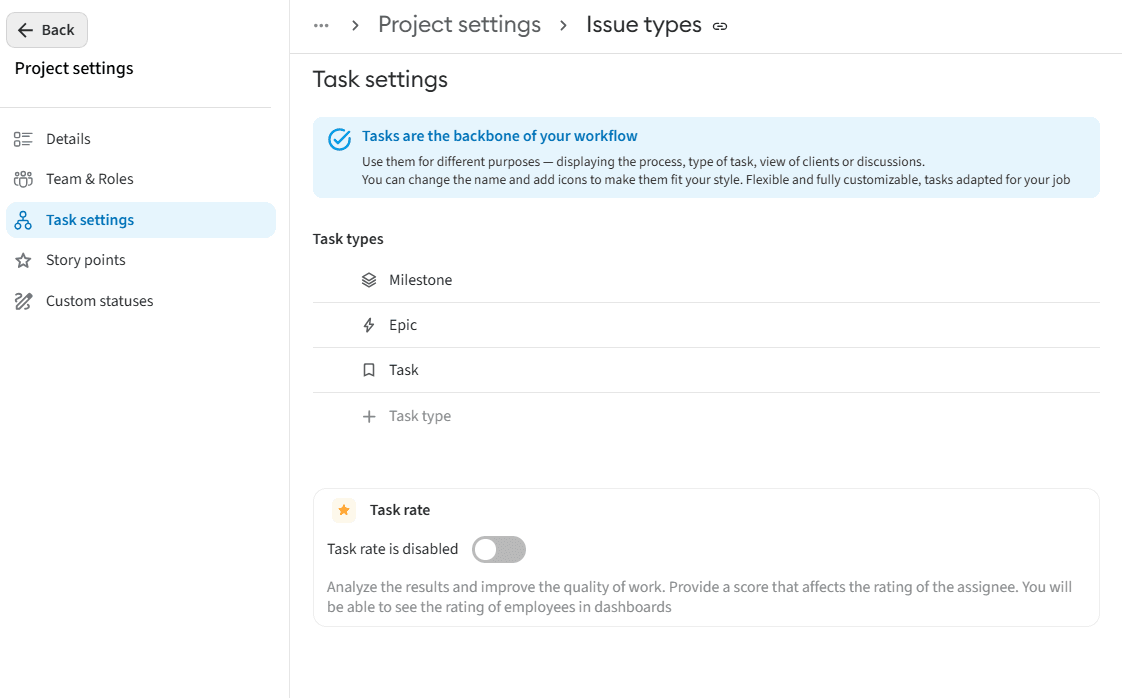
Creating a New Task Type: Click the "+ Task Type" button. Enter a unique name (required field) and save. After that, the new type will become available in the dropdown list when creating tasks.
2. Exporting Tasks
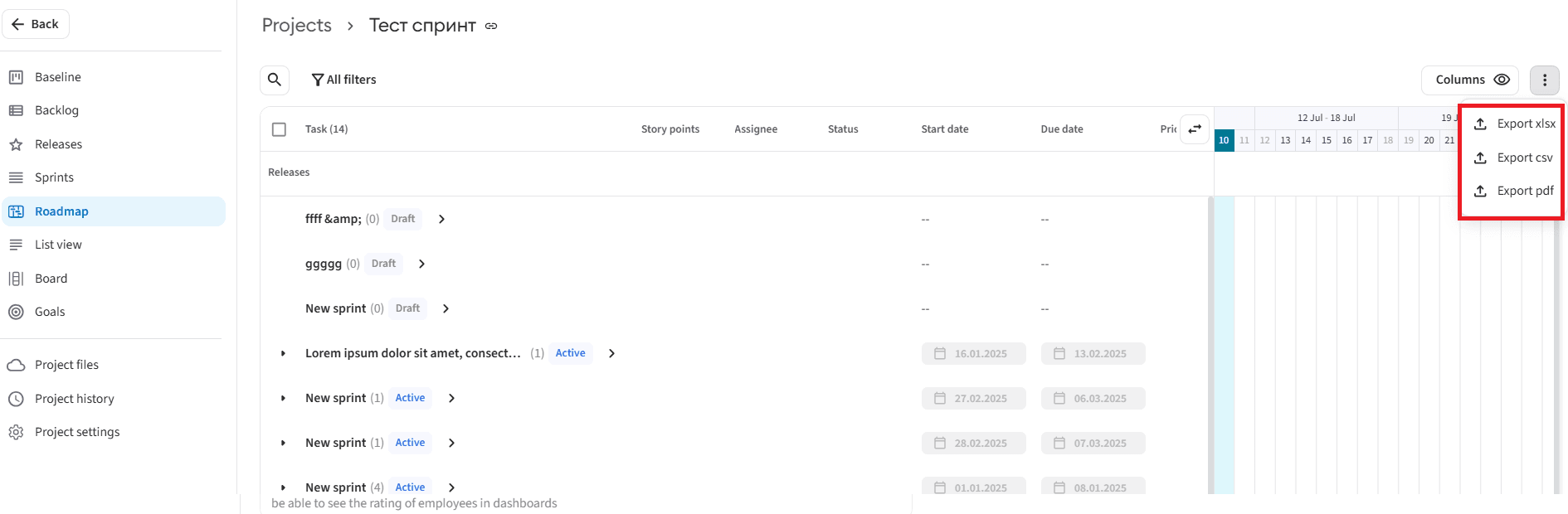
Tasks from any project can be downloaded to your device in a convenient Excel format for further analysis or reporting.
Step-by-Step Export Process:
- Navigate to the required project.
- Open the task list (the data view format does not matter).
- Click the "Export" button and wait for the system to finish generating the file.
- Save the resulting Excel file to your device.